
| 일 | 월 | 화 | 수 | 목 | 금 | 토 |
|---|---|---|---|---|---|---|
| 1 | 2 | 3 | 4 | |||
| 5 | 6 | 7 | 8 | 9 | 10 | 11 |
| 12 | 13 | 14 | 15 | 16 | 17 | 18 |
| 19 | 20 | 21 | 22 | 23 | 24 | 25 |
| 26 | 27 | 28 | 29 | 30 | 31 |
- 프로그레시브웹앱
- framework
- tdd
- maven
- 프레임워크
- Oracle
- TIL
- mybatis
- javascript
- sql
- springaop
- web
- 스프링
- js
- TodayILearned
- 자바프로그래밍
- 서브쿼리
- CSS
- SpringMVC
- 생활코딩
- 메이븐
- PWA
- 국비지원
- JavaScript 내장객체
- HTML
- javaprogramming
- sqldeveloper
- 자바스크립트
- 오라클
- progressive web app
- Today
- Total
1cm
자바 프로그래밍_Day_53_웹 문서 구조 본문

2021. 11. 02
> transform-origin
-> 기존 변형 기준 x, y, z 축이 아닌 특정 지점을 기준으로 변형할 수 있게 하는 속성
선택자{transform-origin: x y z;}
> perspective
-> 화면에서 원근감을 갖게 하는 속성
* 다른 변형과 적용하려면 먼저 족용되어야 함
선택자{perspective: 숫자(단위);}
> transform-style
-> 여러가지 변형을 동시에 하는 경우 부모 요소에서 적용한 3D변형을 하위 요소에 적용하는 속성
선택자{transform-style: 속성 값;}
-> flat : 하위 요소를 평면으로 처리
-> preserve-3d : 하위 요소들에 3D효과 적용
> backface-visibility
-> 회전하여 뒷면이 보일 경우 뒷면을 보이게 할 거싱ㄴ지 안 보이게 할 것인지 설정하는 속성
선택자{backface-visibility: 속성 값;}
-> hidden : 뒷면이 보이지 않게 설정
-> visible : 뒷면이 보이게 설정
> 실습 코드와 출력 결과
-> 07. 변형.html
    <h2>기타 변형 속성</h2>

    <h3>transform-origin</h3>
    <img class="trans-test" id="left-top" src="../resources/image/flower1.PNG">

    <img class="trans-test" id="right-top" src="../resources/image/flower2.PNG">

    <img class="trans-test" id="left-bottom" src="../resources/image/flower3.PNG">

    <img class="trans-test" id="right-bottom" src="../resources/image/flower4.PNG">

    <h3>backface-visibility</h3>
    <img class="trans-test" id="back1" src="../resources/image/flower5.PNG">
    <img class="trans-test" id="back2" src="../resources/image/flower5.PNG">
-> 07. 변형.css
#left-top:hover {
    /* transform-origin: left center; */
    transform-origin: left top;
    transform: rotate(60deg);
}

#right-top:hover {
    /* transform-origin: right center; */
    transform-origin: right top;
    transform: rotate(45deg);
}

#left-bottom:hover {
    transform-origin: left bottom;
    transform: rotate(45deg);
}

#right-bottom:hover {
    transform-origin: right bottom;
    transform: rotate(45deg);
}

/* backface-visibility */
#back1:hover {
    transform: rotateX(180deg);
    backface-visibility: hidden;
}

#back2:hover {
    transform: rotateX(180deg);
    backface-visibility: visible;
}
> 출력 결과
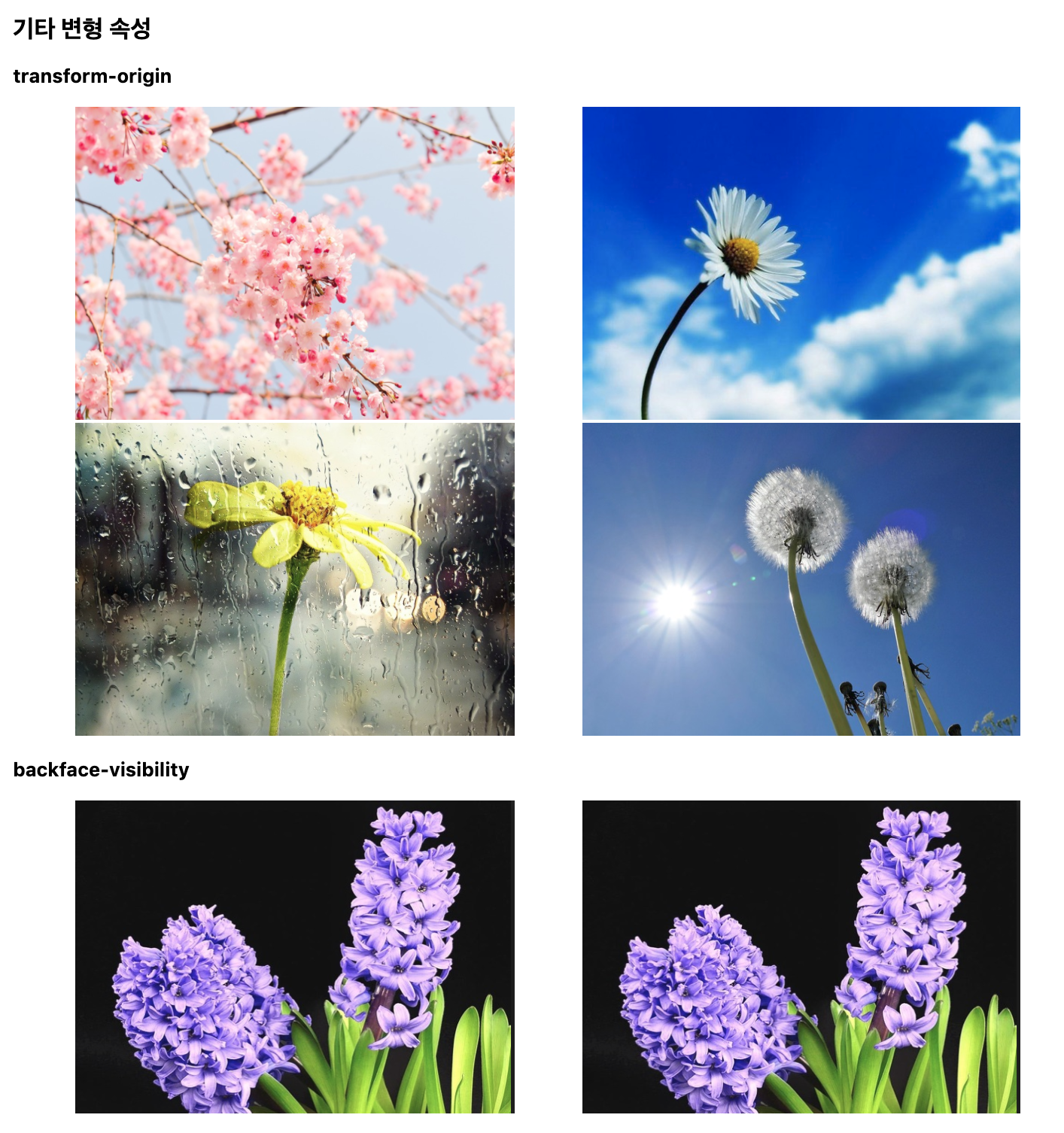
-> 출력 결과는 동시에 캡쳐하기가 어려워 hover(마우스를 올리면 효과가 바뀜)전 이미지로 대체.
코드로는 정상적으로 적용된다.
> 웹 문서 구조 - 시맨틱 태그 (semantic)
-> 페이지 구조를 특정 기능에 맞는 태그를 사용하여 구분,
페이지 구조를 쉽게 파악 가능하고 좀 더 정확한 정보를 검색 가능
검색 엔진에서 쉽게 문서 내용 검색 가능
어느 장치에서나 똑같이 문서 해석 가능
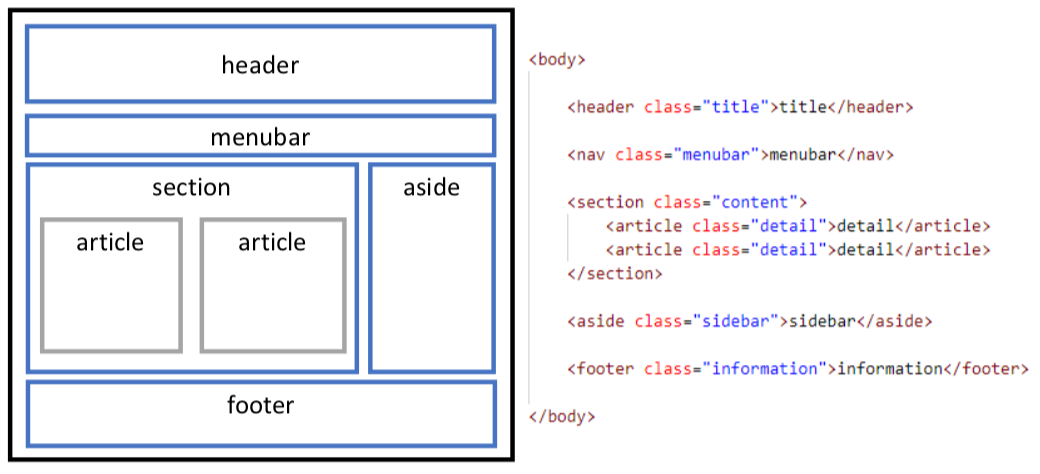
> <header></header>
-> 특정 부분의 머리말로 주로 검색어(form), 메뉴(nav)를 넣음
> <nav></nav>
-> 다른 사이트나 페이지로 이동하는 태그를 모아놓은 태그(네비게이션)
특정 태그에 종속되지 않고 어느 곳에서나 사용 가능
주로 메뉴, footer의 사이트 링크 모음에 많이 쓰임
> <section></section>
-> 웹 문서에서 콘텐츠가 들어가는 영역으로 콘텐츠를 주제 별로 묶을 때 사용, <section> 태그 안에 <section> 태그를 넣을 수 있음
주제 별로 article을 묶어주는 태그
> <article></article>
-> 웹 페이지 내용이 들어가는 영역으로 이 태그 영역은 다른 곳으로 배포하거나 재 사용 가능, 검색 로봇은 이 태그가 사용된 콘텐츠는 배포할 수 있는 콘텐츠로 인식
> <aside></aside>
-> 사이드 바라고 불리며 본문 외의 기타 내용을 담고 있는 영역
주로 광고를 달거나 링크 모음 등을 표현
> <footer></footer>
-> 웹 페이지의 맨 아래쪽에 위치하며 회사 소개, 저작권, 연락처(<address> 태그) 등의 정보 표시, <footer>에 <header>, <section>, <article> 등 다른 레이아웃 사용 가능
> 실습 코드와 출력 결과
-> 01_웹문서구조_1.html
<!DOCTYPE html>
<html lang="ko">
<head>
    <meta charset="UTF-8">
    <meta http-equiv="X-UA-Compatible" content="IE=edge">
    <meta name="viewport" content="width=device-width, initial-scale=1.0">
    <title>영역 관련 속성</title>

    <style>
        .test {
            border: 20px solid blue;

            /* width, height 속성은 content 영역에 적용된다. */
            width: 300px;
            height: 150px;
            padding: 10px;
            margin: 20px;

            /* 컨텐츠 영역의 너비에 패딩과 테두리 크기까지 합쳐서
                width, height 속성을 지정하도록 설정하는 속성이다.
                (기본값 : content-box)
            */
            box-sizing: border-box;
        }

        .inner {
            border: 10px solid salmon;
            /* width: 400px; */
            width: 100%;
            height: 100%;
            padding: 10px;
            box-sizing: border-box;
        }

        .wrap {
            border: 5px solid blueviolet;
            width: 400px;
            height: 200px;
        }

        .test1, .test2 {
            border: 5px solid palevioletred;
            width: 100%;
            box-sizing: border-box;
        }

        .test1 {
            height: 70%;
        }

        .test2 {
            height: 30%;
        }

        .test3, .test4 {
            border: 5px solid indianred;
            height: 100%;
            box-sizing: border-box;
            float: left;
            /* display: inline-block; */
            /* margin-right: -4px; */
            /* display를 할 때에는 margin값을 줘서 추가 조정 필요 */
        }

        .test3 {
            width: 65%;
        }

        .test4 {
            width: 35%;
        }
    </style>
</head>
<body>
    <h2>영역 관련 속성</h2>
    <div class="test"></div>

    <hr>

    <h2>div 안에 또 다른 div 넣기</h2>

    <div class="test">
        <div class="inner"></div>
    </div>

    <hr>

    <h2>div 안에 또 다른 div 여러 개 넣기</h2>
    <h3>상하 div 2등분 하기</h3>

    <div class="wrap">
        <div class="test1"></div>
        <div class="test2"></div>
    </div>

    <h3>좌우 div 2등분 하기</h3>
    <div class="wrap">
        <div class="test3"></div>
        <div class="test4"></div>
    </div>
</body>
</html>
> 출력 결과

-> 02_웹문서구조_2(시맨틱).html
<!DOCTYPE html>
<html lang="ko">
<head>
    <meta charset="UTF-8">
    <meta http-equiv="X-UA-Compatible" content="IE=edge">
    <meta name="viewport" content="width=device-width, initial-scale=1.0">
    <title>시맨틱 태그</title>
</head>
<body>
    <h1>시맨틱 태그</h1>
    <!--
    <div class="wrap">
        <div class="title">헤더</div>
        <div class="menubar">메뉴바</div>
        <div class="content">
            <div class="detail">내용 1</div>
            <div class="detail">내용 2</div>
        </div>
        <div class="sidebar">사이드 바</div>
        <div class="information">하단부</div>
    </div>
    -->

    <!--
        시맨틱(Semantic) 태그
            웹 접근성 및 웹 문서의 구조화와 관련하여
            기존에 div 형태로 나누었던 구조를 별도의 태그 형식으로 정의한 태그들을 시맨틱 태그라고 한다.
     -->

     <div class="wrap">
        <header>헤더</header>
        <nav>메뉴바</nav>
        <section>
            <article>내용 1</article>
            <article>내용 2</article>
        </section>
        <aside>사이드 바</aside>
        <footer>하단부</footer>
     </div>
</body>
</html>
> 출력 결과
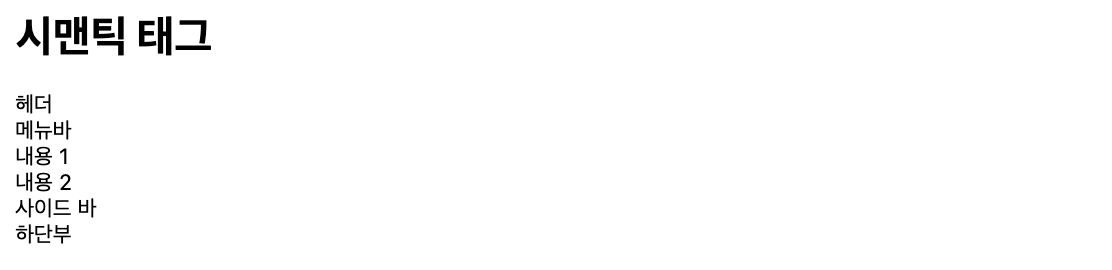
-> 보기에는 달라져 보이는 게 없지만 코드 상에서는 시맨틱 태그들로 구분되어 있는 것을 확인할 수 있음.
-> 03_웹문서구조_실습1.html
<!DOCTYPE html>
<html lang="ko">
<head>
    <meta charset="UTF-8">
    <meta http-equiv="X-UA-Compatible" content="IE=edge">
    <meta name="viewport" content="width=device-width, initial-scale=1.0">
    <title>웹 문서 구조 실습 1</title>

    <link rel="stylesheet" href="./03_웹문서구조_실습1.css">
</head>
<body>
    <h1>웹 문서 구조 실습 1</h1>

    <div class="wrap">
        <header></header>
        <section>
            <article id="content1"></article>
            <article id="content2"></article>
        </section>
        <footer></footer>
    </div>
</body>
</html>
-> 03_웹문서구조_실습1.css
*:not(h1) {
    border: 1px solid seagreen;
    box-sizing: border-box;
}

.wrap {
    width: 1000px;
    height: 800px;
    margin: auto;
}

header {
    height: 20%;
}

section {
    height: 60%;
}

section>article {
    height: 100%;
    float: left;
}

#content1 {
    width: 20%;
}
#content2 {
    width: 80%;
}

footer {
    height: 20%;
}
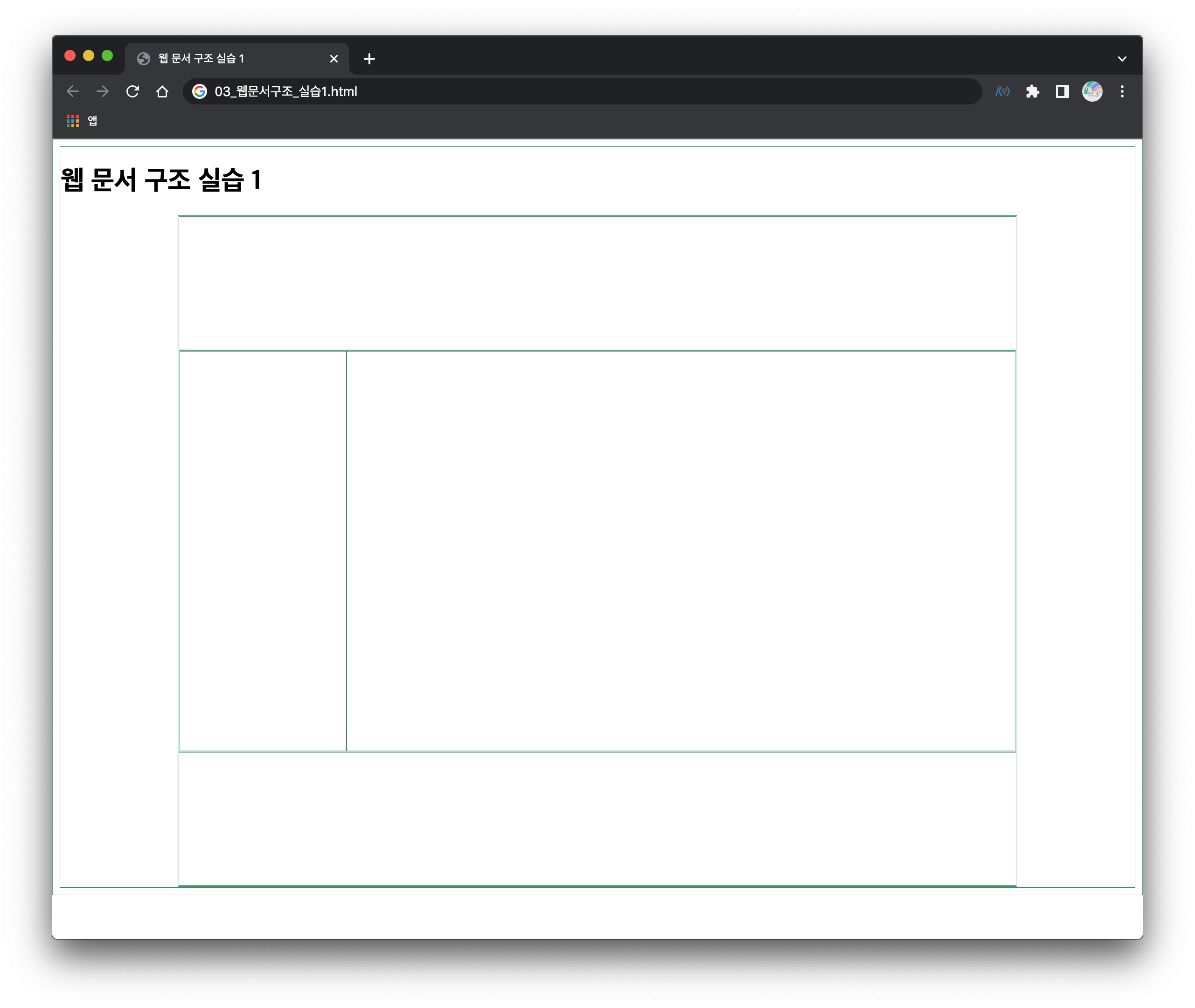
> 출력 결과
-> 03_웹문서구조_실습2.html
<!DOCTYPE html>
<html lang="ko">
<head>
    <meta charset="UTF-8">
    <meta http-equiv="X-UA-Compatible" content="IE=edge">
    <meta name="viewport" content="width=device-width, initial-scale=1.0">
    <title>웹 문서 구조 실습 2</title>

    <link rel="stylesheet" href="./04_웹문서구조_실습2.css">
</head>
<body>
    <h1>웹 문서 구조 실습 2</h1>

    <div class="wrap">
        <header></header>
        <section>
            <article id="content1"></article>
            <article id="content2"></article>
            <article id="content3"></article>
        </section>
        <footer></footer>
    </div>
</body>
</html>
-> 03_웹문서구조_실습2.css
*:not(h1) {
    border: 1px solid seagreen;
    box-sizing: border-box;
}

.wrap {
    width: 1000px;
    height: 800px;
    margin: auto;
}

header {
    height: 20%;
}

section {
    height: 60%;
}

section>article {
    height: 100%;
    float: left;
}

#content1 {
    width: 20%;
}
#content2 {
    width: 60%;
}
#content3 {
    width: 20%;
}

footer {
    height: 20%;
}
> 출력 결과
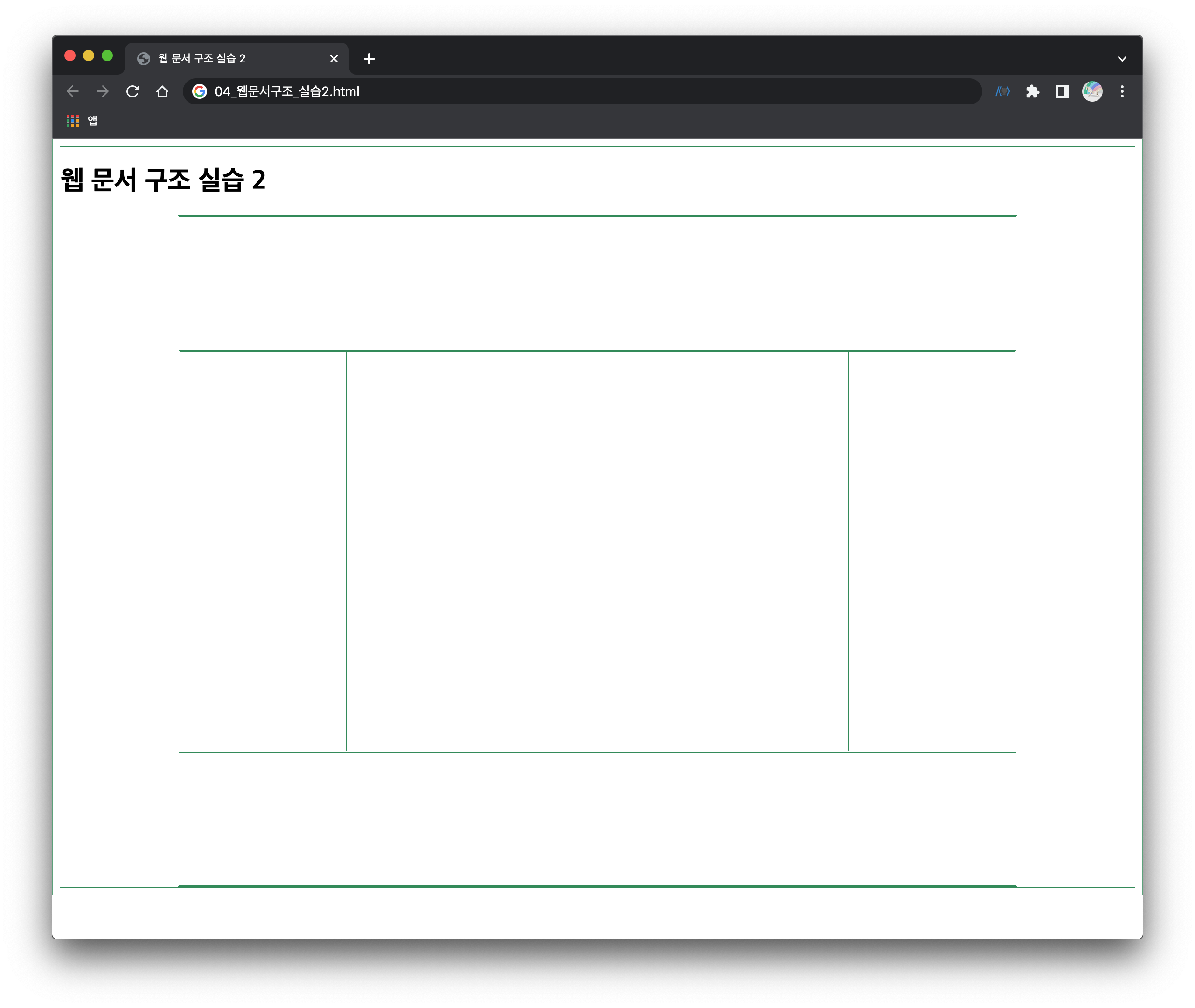
-> 웹 문서 구조 실습1과 다른 점이 있다면 오른쪽 네비가 생긴 점!
이렇게 보니 웬만한 웹사이트 뼈대가 어떻게 되어있는지 파악할 수 있는 것 같다.
-> 03_웹문서구조_실습3.html
<!DOCTYPE html>
<html lang="ko">
<head>
    <meta charset="UTF-8">
    <meta http-equiv="X-UA-Compatible" content="IE=edge">
    <meta name="viewport" content="width=device-width, initial-scale=1.0">
    <title>웹 문서 구조 실습 3</title>

    <link rel="stylesheet" href="./04_웹문서구조_실습3.css">
</head>
<body>
    <h1>웹 문서 구조 실습 3</h1>

    <div class="wrap">
        <header>
            <div id="header_contents">
                <div id="header1"></div>
                <div id="header2"></div>
                <div id="header3"></div>
            </div>
            <nav></nav>
        </header>
        <section>
            <article id="content1"></article>
            <article id="content2"></article>
            <article id="content3"></article>
        </section>
        <footer></footer>
    </div>
</body>
</html>
-> 03_웹문서구조_실습3.css
*:not(h1) {
    border: 1px solid seagreen;
    box-sizing: border-box;
}

.wrap {
    width: 1000px;
    height: 800px;
    margin: auto;
}

header {
    height: 20%;
}

#header_contents {
    height: 80%;
}

header>#header_contents>div {
    height: 100%;
    float: left;
}

#header1 {
    width: 20%;
}

#header2 {
    width: 60%;
}

#header3 {
    width: 20%;
}

nav {
    height: 20%;
}

section {
    height: 60%;
}

section>article {
    height: 100%;
    float: left;
}

#content1 {
    width: 20%;
}
#content2 {
    width: 60%;
}
#content3 {
    width: 20%;
}

footer {
    height: 20%;
}
> 출력 결과
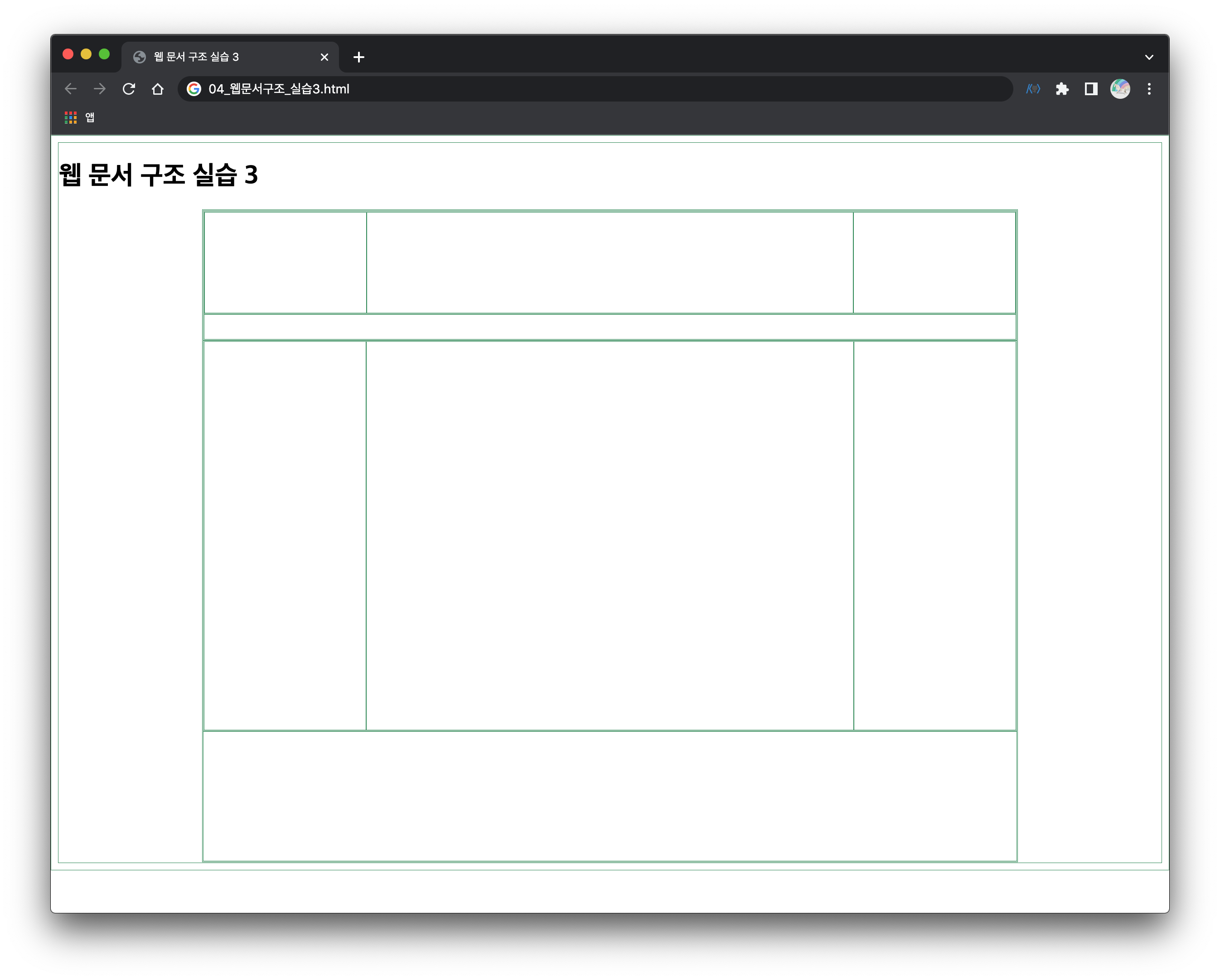
-> 05_로그인폼.html
<!DOCTYPE html>
<html lang="ko">
<head>
    <meta charset="UTF-8">
    <meta http-equiv="X-UA-Compatible" content="IE=edge">
    <meta name="viewport" content="width=device-width, initial-scale=1.0">
    <title>로그인 폼</title>
    <style>
        div, form, input {
            /* border: 1px solid; */
            box-sizing: border-box;
        }

        #login_wrap {
            width: 300px;
            height: 120px;
        }

        #login_form {
            height: 80%;
        }

        #login_form_input {
            height: 100%;
            width: 65%;
            float: left;
        }

        #login_form_input>input {
            width: 100%;
            height: 50%;
        }

        #login_form_btn {
            height: 100%;
            width: 35%;
            float: left;
        }

        #login_form_btn>input {
            width: 100%;
            height: 100%;
        }

        #log_form_link {
            height: 20%;
            text-align: center;
            padding-top: 2px;
        }

        #log_form_link>a {
            text-decoration: none;
            color: black;
            /* margin-left: 2px;
            margin-right: 2px; */
            /* margin-top: 3px;
            display: inline-block; */
        }

    </style>
</head>
<body>
    <h1>로그인 폼</h1>

    <div id="login_wrap">
        <form id="login_form">
            <div id="login_form_input">
                <input type="text" placeholder="아이디를 입력하시오." required>
                <input type="password" placeholder="비밀번호를 입력하시오." required>
            </div>
            <div id="login_form_btn">
                <input type="submit" value="로그인">
            </div>
        </form>

        <div id="log_form_link">
            <a href="">회원가입</a>
            <a href="">아이디 찾기</a>
            <a href="">비밀번호 찾기</a>
        </div>
    </div>
</body>
</html>
-> id, pw를 form태그로 감싸주는 이유?
form 태그 안에 id, pw 정보를 묶어서 한 번에 서버로 submit 해준다고 생각하면 된다.
> 출력 결과

-> 06_메뉴바.html
<!DOCTYPE html>
<html lang="ko">
<head>
    <meta charset="UTF-8">
    <meta http-equiv="X-UA-Compatible" content="IE=edge">
    <meta name="viewport" content="width=device-width, initial-scale=1.0">
    <title>메뉴바</title>
    <style>
        nav {
            /* border: 1px solid; */
            width: 1000px;
            height: 40px;
        }

        #navi {
            /* border: 1px solid; */
            list-style-type: none;
            height: 100%;
            margin: 0;
            padding: 0;
        }

        #navi>li {
            float: left;
            width: 20%;
            text-align: center;
            height: 100%;
        }

        #navi a {
            text-decoration: none;
            color: brown;
            font-size: 1.5em;
            font-weight: 900;
            height: 100%;
            display: block;
            line-height: 35px;
        }

        #navi a:hover {
            color: red;
        }

        /* li 안 보이게 */
        #navi>li>ul {
            list-style-type: none;
            padding: 0;
            display: none;
        }

        /* 마우스 올렸을 때 li 보이게 */
        #navi>li>a:hover+ul {
            display: block;
        }

        /* 마우스 올렸을 때 선택할 수 있게 */
        #navi>li>ul:hover {
            display: block;
        }

        /* li 크기 조절 */
        #navi>li>ul a {
            font-size: 1.2em;
        }

    </style>
</head>
<body>
    <h1>메뉴바</h1>

    <nav>
        <ul id="navi">
            <li><a href="">JAVA</a></li>
            <li><a href="">ORACLE</a></li>
            <li>
                <a href="">FRONT-END</a>
                <ul>
                    <li><a href="">HTML</a></li>
                    <li><a href="">CSS</a></li>
                    <li><a href="">Javascript</a></li>
                    <li><a href="">jQuery</a></li>
                </ul>
            </li>
            <li>
                <a href="">SERVER</a>
                <ul>
                    <li><a href="">Servlet</a></li>
                    <li><a href="">JSP</a></li>
                    <li><a href="">AJAX</a></li>
                </ul>
            </li>
            <li>
                <a href="">FRAMEWORK</a>
                <ul>
                    <li><a href="">Mybatis</a></li>
                    <li><a href="">Spring</a></li>
                </ul>
            </li>
        </ul>
    </nav>
</body>
</html>
> 출력 결과
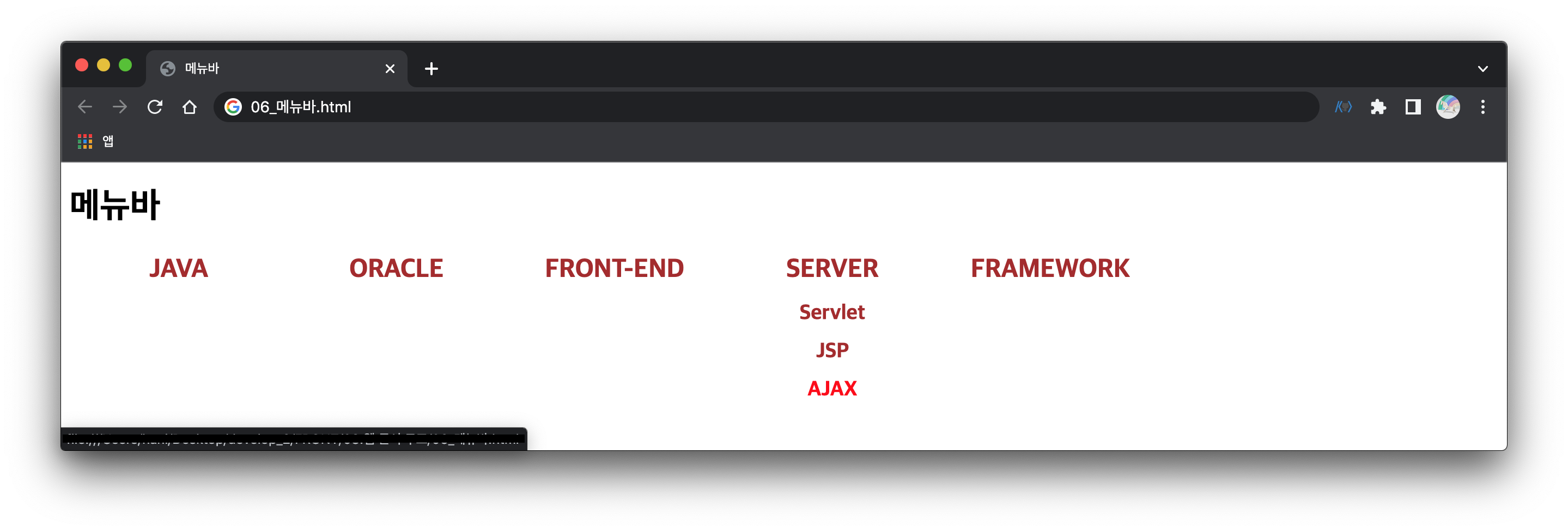
-> 마우스를 올리면 하위메뉴가 보이고, 하위 메뉴의 색이 바뀌게 설정했다.
'국비지원_Java > Java Programming_1' 카테고리의 다른 글
| 자바 프로그래밍_Day_55_자바스크립트개요 (0) | 2022.05.31 |
|---|---|
| 자바 프로그래밍_Day_54_UI디자인 평가 (0) | 2022.05.30 |
| 자바 프로그래밍_Day_52_CSS 스타일, 변형 (0) | 2021.12.07 |
| 자바 프로그래밍_Day_51_CSS_레이아웃_스타일 (0) | 2021.12.07 |
| 자바 프로그래밍_Day_50_CSS_선택자_우선순위 (0) | 2021.12.02 |


